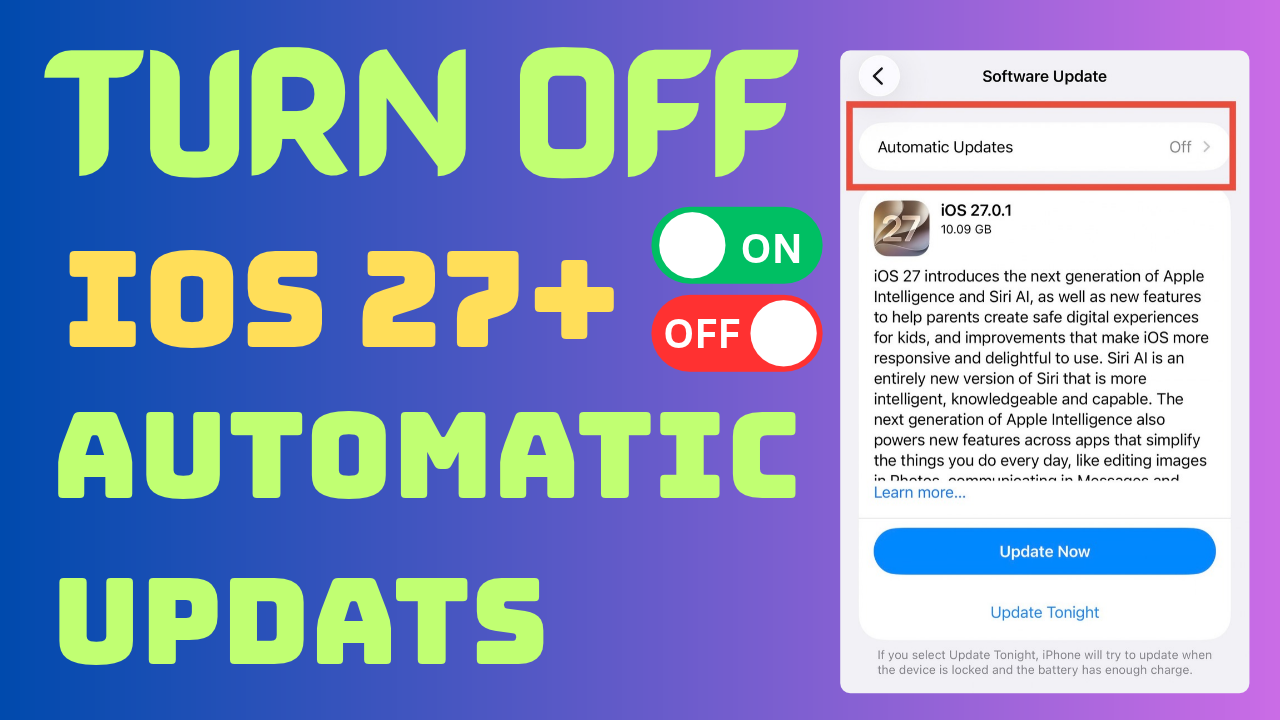
How to Turn Off Automatic Updates on Any iPhone Model (2026): Updates & Automatic
To turn off automatic updates and app updates on any iPhone/iPad model, follow the complete step-by-step guide below.
To turn off automatic updates on iPhone devices on the latest iOS, we have outlined 2 main methods: opening iPhone Settings and installing an OTA update-disabler configuration profile.
Understanding iPhone Updates and Why You Might Disable Them
Apple releases updates for iPhones from time to time because they improve performance, security protections, and add new features. As an iDevice user, you will receive updates you can install on your devices. Apple mainly introduces major updates at its events and adds new features; those major updates are iOS 26, iOS 27, and so on. So if your device doesn’t have enough space, or you prefer to stick to major iOS updates and don’t like updating all the time, you might disable them.
NOTE - We strongly advise users to keep their device as up to date as possible to protect it and improve performance (battery life, Speed).
If you want to disable those messy iPhone updates below, we have covered every way to stop Apple updates and how to turn them back on if you need to in the future.
Before You Disable: Considerations and Impacts
Before you disable iOS or app updates, think twice about the following.
Security Vulnerabilities & Patches: Apple releases most updates to patch critical security fixes and zero-day patches, so if you disable updates, your device may be open to malware, exploits, and security threats.
App Compatibility Issues: If you don’t update your iOS version, most social media apps and new apps may not be compatible because your iOS is outdated.
New Features & Ecosystem Changes: With each new major iOS version, Apple introduces new features, API integrations, and UI changes, so you miss out.
How to Turn Off Automatic Updates on Any iPhone Model
Are you looking for a way to stop iOS & apps from auto-updating on your device? If so, what you need to do is first try to stop software updates using the iPhone Settings app, so follow the guide below carefully.
Step 01: Open the iPhone Settings App
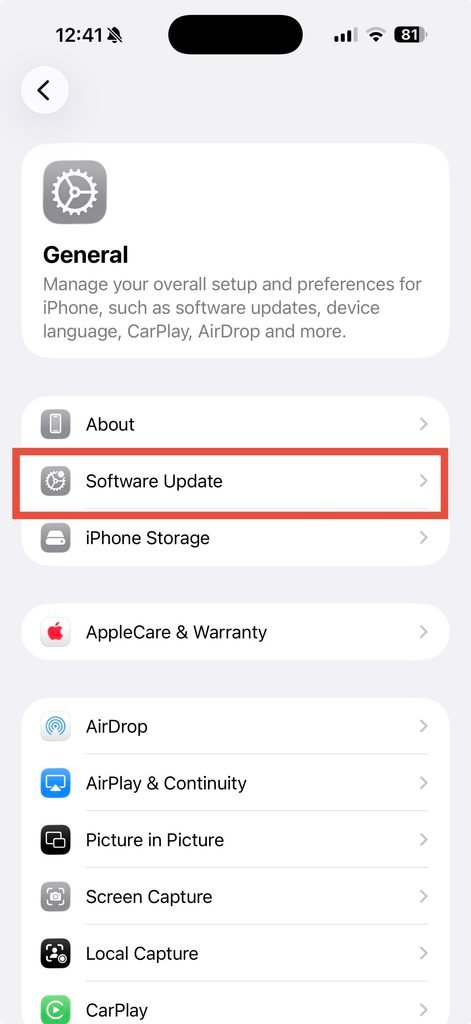
Step 02: Go to General > Software Update
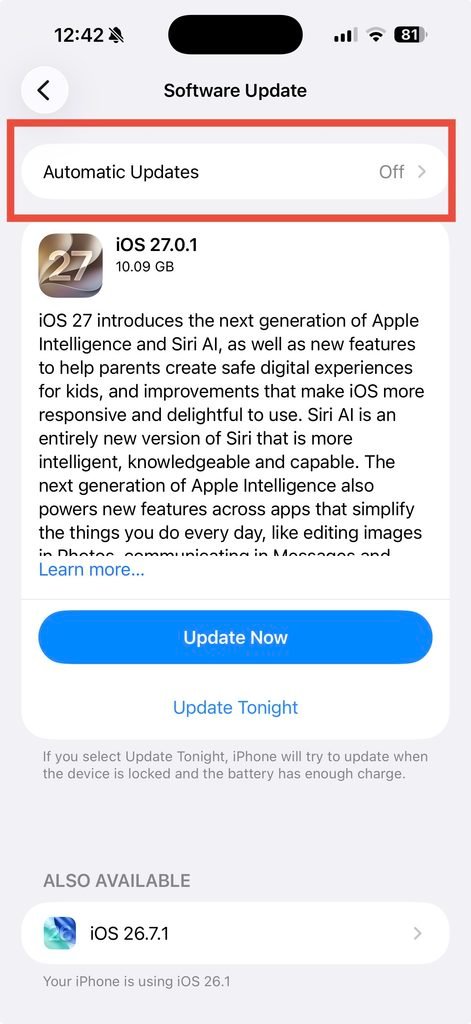
Step 03: Tap on Automatic Updates
Step 04: Turn off Automatically Install & Automatically Download Also Automatically Install.
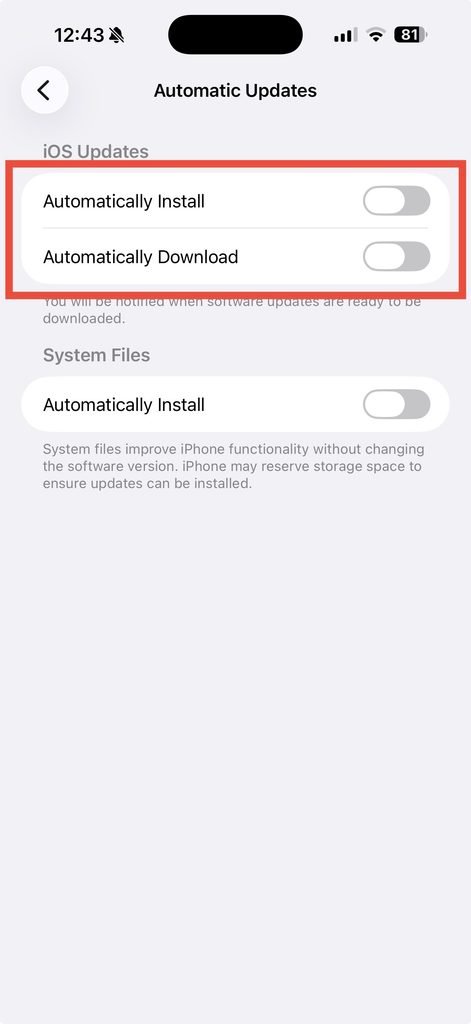
Now your device won’t download or install any further iOS updates until you turn these settings on.
Disabling Automatic iOS System Updates
Users can also disable automatic iOS system updates; to do that, you need to open iPhone Settings > General > Software Update > under the “System Files” section, turn off “Automatically Install”.
Disabling Automatic App Updates
Also, if you need to disable Automatic App Updates, you can follow the guide below.
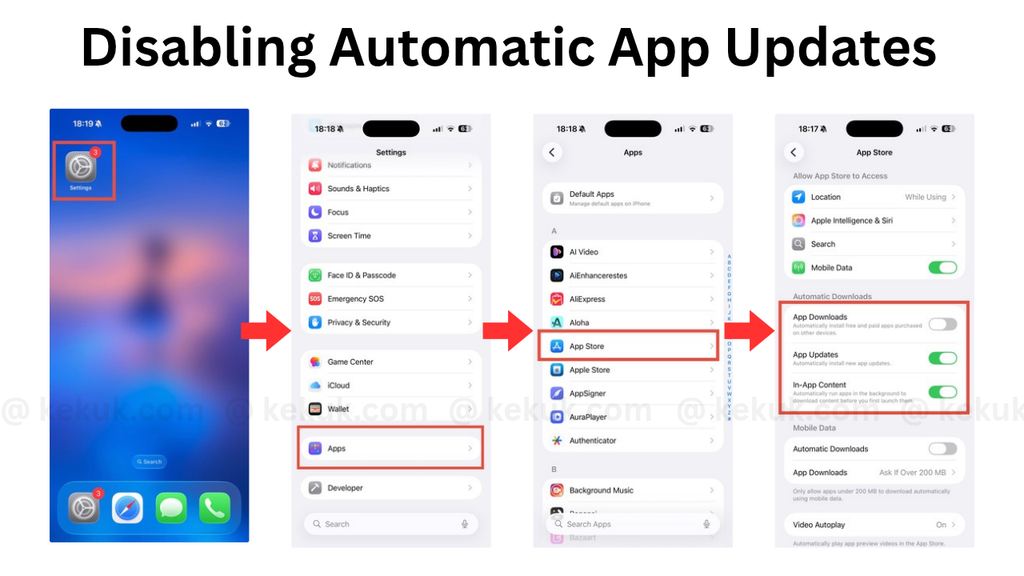
Step 01: Open the iPhone Settings App
Step 02: Navigate to the “Apps” section and tap on it
Step 03: Scroll down and tap on “App Store”
Step 04: Under the “Automatic Downloads” section, toggle off the switch next to App Updates.
You can also disable (toggle off) the “App Updates” toggle.


